
Introduction
Resetting your Lenovo Ideapad laptop is sometimes the best way to rejuvenate your device. Whether your goal is to fix ongoing software problems, ready your laptop for someone new, or simply improve its performance, a reset process can be a straightforward solution. This guide is designed to walk you through the necessary steps efficiently for successful outcomes that ensure your laptop runs smoothly again.

Why You Might Need to Reset Your Lenovo Ideapad
A few primary reasons might prompt the need to perform a reset on your Ideapad. Enhancing your laptop’s speed and resolving pesky software errors are top on the list. Over time, laptops get bogged down by unwanted files and settings that lead them to slow or malfunction. A reset effectively cleans the slate to enhance overall performance and reliability.
Furthermore, before handing your Ideapad over to someone else, a reset cleanses your machine of personal data, safeguarding your privacy and data integrity. Recognizing these benefits underscores when and how a reset is advantageous to device health and personal safety.
Preparing Your Lenovo Ideapad for a Reset
Preparation lays the groundwork for a seamless reset experience. First, back up your essential data. Whether you use an external drive or cloud services, this step ensures your files remain intact, as the reset will wipe your device clean.
Next, check that your device is powered and battery health is stable. Connect the laptop to a charger; a fully drained battery and unexpected shutdowns during the reset can create significant issues. With preparations in place, get set for the reset process detailed next.
Methods to Reset Your Lenovo Ideapad
Different scenarios may require different approaches to reset your device effectively. Here are several methods to consider:
- Resetting Through Windows Settings:
- Access Settings.
- Go to Update & Security.
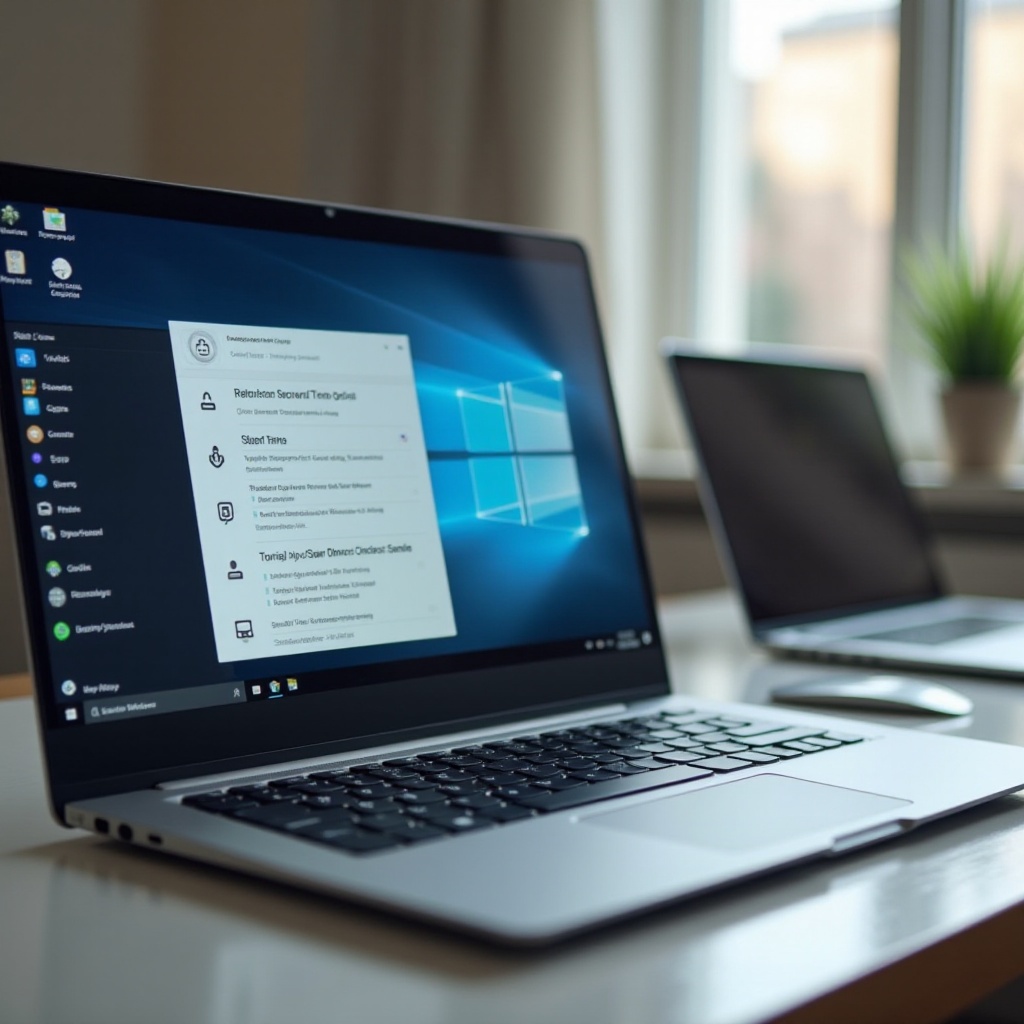
- Click Recovery and then Get started under ‘Reset this PC’.
-
Opt to either keep your files or remove everything.
-
Using Lenovo OneKey Recovery System:
- Power off your Ideapad.
- Press the *Novo button, typically close to the power key.
-
Use the arrows to select System Recovery and follow the on-screen guidance.
-
Performing a Hard Reset via BIOS or Recovery Partition:
- Restart the laptop and hit F12 or Enter to open BIOS or the boot menu.
- Choose the recovery partition when accessible and adhere to the instructions.
Each method can restore your device effectively. Take care to follow steps accurately to assure the reset’s success without glitches.
Troubleshooting Common Reset Issues
Occasionally, challenges can arise during the resetting process. Familiar issues and resolutions include:
- Error Messages: Disconnect all peripherals, reboot the reset and initiate the process anew.
- Failed Reset Attempts: Changing to an alternative resetting approach if previous attempts fail often solves the problem. Persisting issues might necessitate reaching Lenovo support for comprehensive assistance.
Preparedness in the face of such potential setbacks ensures a minimization of disruptions, securing the reset’s effectiveness.

After the Reset: Essential Steps
With your Lenovo Ideapad reset, the following steps will help maximize its refreshed state:
- Restoring Data and Software: Retrieve your stored files from backup sources and reinstall indispensable applications promptly.
- Updating System Drivers and Windows: Check and install new drivers from Lenovo’s support page, plus run Windows updates to bolster security and performance.
Executing these immediate follow-up steps guarantees your laptop remains current and operates optimally.
Conclusion
Resetting your Lenovo Ideapad isn’t just simple; it’s a proactive measure that can elevate your laptop’s usability and safety. A well-managed reset navigates through potential problems seamlessly, leaving you with a device rejuvenated and ready to meet all demands. When additional assistance might be necessary, Lenovo’s support team remains an essential resource.
Frequently Asked Questions
How long does it take to reset a Lenovo laptop?
A reset typically takes between 30 minutes to an hour, depending on your device’s method and specifications.
Will resetting my Lenovo Ideapad remove all viruses?
A reset can eliminate many software issues, but it’s recommended to use antivirus software post-reset for ongoing protection.
Can I reset my Lenovo Ideapad without losing files?
Yes, selecting the option to keep your files during the reset process allows you to retain personal data while defaulting system settings.