
Introduction
Personalizing your computing environment in Windows 10 is an effective way to enhance both aesthetics and functionality. One of the simplest yet impactful modifications is centering the taskbar. This not only creates visual symmetry but can also boost workflow efficiency. In this guide, you’ll discover the benefits of a centered taskbar, and learn how to achieve this setup using built-in settings, TaskbarX, and other third-party tools. We also provide solutions to common issues you might encounter to guarantee a seamless experience.
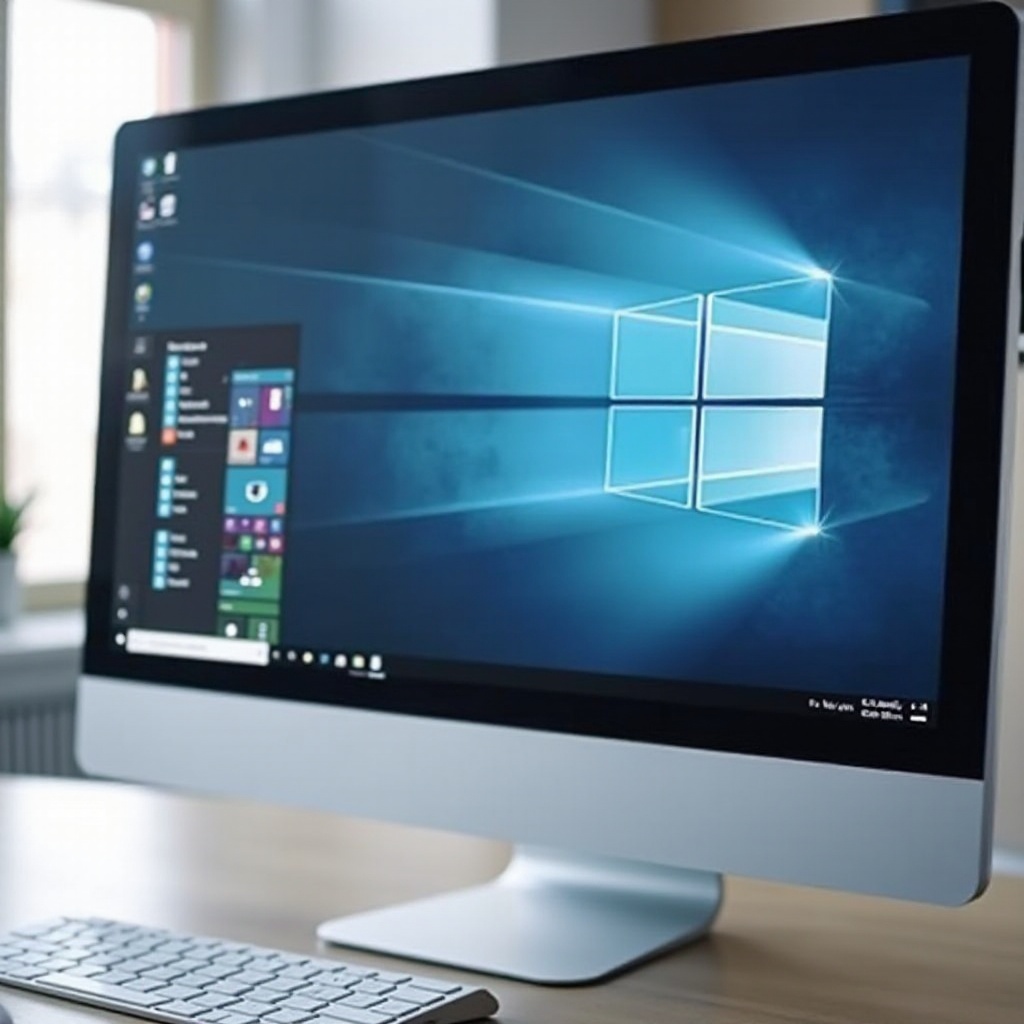
Why Opt for a Centered Taskbar?
Choosing a centered taskbar on Windows 10 comes with several perks. It provides a balanced and symmetrical visual appeal, enhancing the desktop’s overall appearance. When the taskbar is centered, frequently-used applications are easier to access, minimizing mouse movement and improving productivity. Ergonomic research indicates that symmetrical interfaces can enhance focus and concentration, reducing eye strain.
Furthermore, centering the taskbar promotes cleaner desktop organization. Users who juggle multiple windows and icons find this central positioning beneficial as it streamlines window arrangement and reduces clutter. Therefore, a centered taskbar can significantly contribute to a more efficient and aesthetically pleasing workspace.
Preparation Steps Before Centering Your Taskbar
Before you adjust your Windows 10 taskbar, a few preparation steps are advisable. Start by ensuring your Windows 10 is up to date. Updates often bring performance improvements and new features that can aid your customization.
Next, consider backing up important data. Although taskbar modification shouldn’t affect your files, it’s wise to have backups before making system changes. Additionally, familiarize yourself with your current taskbar configuration. Understanding its existing setup will help verify and, if necessary, reverse any modifications you make.
Methods to Center Your Taskbar in Windows 10
There are several options to center your taskbar on Windows 10, from built-in settings to third-party applications. Let’s examine these methods:
Using Windows Settings
Windows 10 has built-in options that allow taskbar preference adjustments, though they don’t directly center the taskbar; they help align icons closer to the center.
- Unlock your taskbar: Right-click the taskbar and select ‘Lock the taskbar’ to ensure it’s unlocked.
- Adjust taskbar settings: Navigate to Settings > Personalization > Taskbar, and adjust icon alignments to move them indirectly toward the center.
Utilizing TaskbarX Software
TaskbarX is popular for seamlessly centering your taskbar and offers extensive customization options.
- Download and Install TaskbarX: Visit the TaskbarX official website to download and install the software.
- Launch TaskbarX: Follow installation prompts, open the app, and configure settings to center icons, customizing transparency and color as desired.
Exploring Other Third-Party Tools
Additional third-party apps also offer easy taskbar centering:
- TaskTool and CenterTaskbar are alternatives for users seeking simple adjustments without complex configurations.
Detailed Step-by-Step Process
If you prefer a detailed approach, here’s how to manually adjust settings and use TaskbarX:
Adjusting Settings Manually
- Access Taskbar Settings: Go to Settings > Personalization > Taskbar.
- Change Icon Alignments: Modify settings to align icons closer to the center.
Configuring TaskbarX
- Open TaskbarX: Run TaskbarX once installed.
- Set Center Alignment: Activate the center-align option in the TaskbarX configuration panel.
- Personalize Further: Test additional settings like icon spacing and colors for tailored aesthetics.
Employing Additional Tools
- Install Alternative Tools: Choose apps like TaskTool or CenterTaskbar for straightforward taskbar centering, following their easy installation instructions.
Troubleshooting Common Issues
Occasionally, taskbar centering may cause issues like misaligned icons or disappearing taskbar elements. Here are some troubleshooting tips:
- Restart Your Computer: Restarting can resolve alignment problems after changes are applied.
- Verify Software Installation: Ensure TaskbarX or other tools are installed correctly.
- Recheck Windows Updates: Confirm that Windows updates haven’t undone taskbar modifications.
Conclusion
Centering your Windows 10 taskbar can enhance both the look and efficiency of your workspace. Whether you use native settings, TaskbarX, or other third-party applications, there’s flexibility to explore various configurations, contributing to greater effectiveness. This guide equips you with the knowledge and tools needed to successfully center your taskbar.
Frequently Asked Questions
How do I keep the taskbar centered after a Windows update?
Regularly check if updates overwrite your settings. Ensure software like TaskbarX is configured to launch at startup to maintain taskbar adjustments.
Is TaskbarX safe to use for centering the taskbar in Windows 10?
TaskbarX is generally safe and widely acclaimed. Download from the official site and follow instructions to minimize security risks.
Can I revert to the default taskbar position easily?
Yes, restoring default settings is straightforward. Open your personalization settings and adjust icon alignments or uninstall any third-party software.